For Additional help or information on Cognos, take a look at DTS's page on Cognos:
https://dts.ucla.edu/enterprise-data-and-analytics/reporting-analytics/cognos-overview
How to download a copy of the report in PDF or Excel
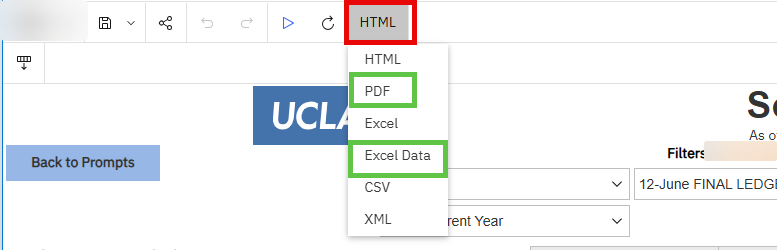
After running any Cognos report, click the 'HTML' option at the header to see a list of formats available for download. Listed below are various formats, along with recommendations on when to use each one.
- HTML: The default view. Shows the report on the browser.
- PDF: Generates a PDF of the report
- Excel: downloads a formatted excel file, and may include merged cells. (not recommended)
- Excel Data: downloads as unformatted Excel file (this option is the preferred method to allow for easy/quick data manipulation in Excel)
After downloading, select HTML to go back to the report view on your browser.
How to filter and sort data in the Report
After running a Cognos report, The report may have prompts (dropdowns or checkboxes) you can use to further filter your report. You also have the ability to filter and sort the data within the report using the interactive toolbar.
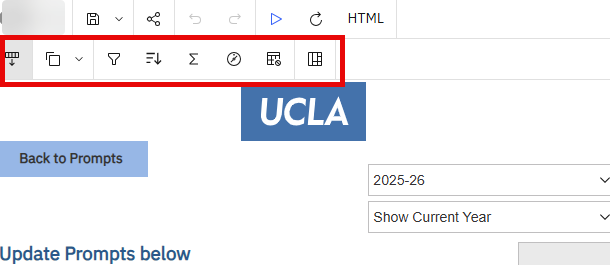
Click on the column you wish to filter or sort, and a toolbar will appear at the top of the page or above or below the list:
The toolbar could be docked at the top left of the page
Or the toolbar may be undocked and show up at the top or bottom of the report list:
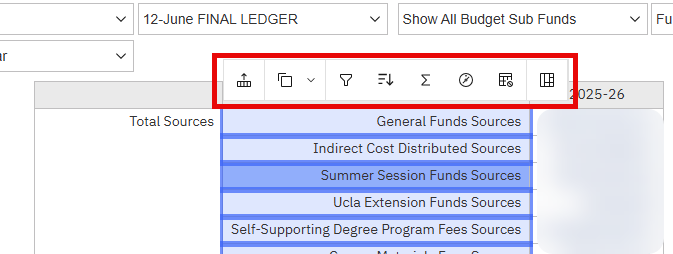
Filtering (the funnel icon):
- Include/Exclude -the value highlighted- filters on the specific value you clicked on.
- Create Custom Filter… allows you to select the specific values you want to include.
After setting filters you can click on the filters Button on the top right to modify your filters:

Sorting:
- Sort the selected column in Ascending or Descending order.
How to go to the next page of reports
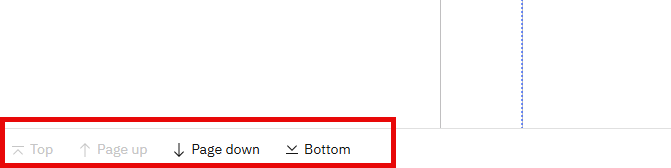
After you run a report, there may be too much data to show on one page. You can go to the next page by clicking on page down on the bottom left of the page.